
Spotify Canvas: Strategy, Specs, and Testing
A Spotify Canvas is a post click asset. Its job starts after the listener has chosen the song.
That point changes the creative brief.
Canvas does not earn the first click from a playlist. It shapes the moment after the click.
It can connect a cold listener to the artist. It can also carry the visual idea from an ad into Spotify.
The release then feels like one campaign instead of a stack of unrelated files.
Most weak Canvas work starts with the wrong question: “What clip should we use?”
Start with this instead: What should the listener understand or feel while this song is playing?
This guide covers the file rules, but the main value is the decision system behind the file.
You will learn how to choose the job, direct the visual, and protect it from bad crops and compression.
The final section shows how to test it without claiming more than the data can prove.
Spotify Canvas Specs At A Glance
A Spotify Canvas is a short visual loop attached to a track. It appears in the Now Playing view on the Spotify mobile app.
Spotify’s current Canvas guidelines list these requirements:
| Setting | Spotify requirement | Production check |
|---|---|---|
| Length | 3 to 8 seconds | Check the exported file, not only the edit timeline |
| Ratio | Vertical 9:16 | Check for padding, black bars, or export scaling |
| Height | 720 to 1080 pixels | Read the final file details before upload |
| Format | MP4 or JPG | Use MP4 for motion and JPG for a still |
Spotify does not list an official bitrate, frame rate, codec, or maximum file size on that page.
Treat numbers from editors and template sites as workflow advice, not platform rules.
There is a real conflict in the public advice.
Many editors use 1080 by 1920 as the standard 9:16 export. Spotify says the Canvas should be 720 to 1080 pixels tall.
Follow Spotify’s current page, inspect the exported file, and test the upload.
If a correct file fails on web, Spotify says to try the mobile app in its upload error guide.
Key takeaway
What A Spotify Canvas Can Actually Do
Canvas sits inside the listening experience. It is not a discovery ad, a full music video, or a call to action card.
It can still do useful work.
Pick one primary job for each track.
1. Transfer Identity
A listener may find you through a playlist where your cover is one small tile among many.
When they open Now Playing, Canvas can show a face, symbol, place, or visual language they can connect to the artist.
The goal is recognition.
You want the listener to leave with one memory beyond the song title.
2. Continue The Campaign
If an ad, Reel, Short, or TikTok earned the click, the Canvas can repeat the same visual cue inside Spotify.
That continuity tells the listener they reached the right song. It also makes the campaign feel intentional.
Reuse the same visual cue.
Carry over the room, prop, color, wardrobe, motion, or camera idea. Do not use a random leftover shot just because it is vertical.
3. Frame The Emotion
The same track can feel intimate, tense, playful, expensive, rough, or distant. Canvas can push one of those readings before the listener has formed a full opinion.
This is useful when the production has a strong mood but the cover cannot show movement. A small change in light, posture, focus, or pace can finish the thought.
4. Improve The Shared Object
When listeners share a track to Instagram Stories, Canvas can travel with it. Spotify shows the behavior in its Canvas sharing guide.
Designing for shares does not mean adding promo copy. It means making the visual clear enough to work outside the full Now Playing screen.
Name the primary job in one sentence. If you cannot, the Canvas is still an asset looking for a reason to exist.If the wider profile has no clear listener path, fix that system first with our Spotify for Artists guide. Canvas can support a strong profile. It cannot replace one.
Decide Whether Canvas Deserves The Effort
Canvas is not equally valuable for every track.
The right production budget depends on the role of the song.
| Release condition | Canvas priority | Best decision |
|---|---|---|
| Focus single with paid or social traffic | High | Carry the winning campaign cue into Spotify |
| Playlist growth is bringing cold listeners | High | Use identity to connect the song to the artist |
| EP or album has one visual world | Medium to high | Create a related Canvas set with one motif and track level changes |
| Catalog track is rising again | Medium | Update the visual only if the new traffic has a clear source or story |
| Low priority catalog with no active traffic | Low | Use a clean cover animation or keep the static art |
| Rights are unclear or the source looks weak | None | Keep the album art until you have a controlled asset |
Build a lighter system for the rest of the release.
Match The Canvas To The Listener Path
Genre lists are too shallow. Two artists in the same genre may need opposite Canvas ideas because their listeners arrived from different places.
Use the source of attention to shape the visual.
| Listener source | What they know | Canvas job | Useful direction |
|---|---|---|---|
| Short video or ad | They know one hook and one visual cue | Confirm continuity | Repeat the same set, prop, gesture, or camera move |
| Editorial or user playlist | They may know only the sound | Transfer identity | Show the artist or a distinct symbol from the artist world |
| Algorithmic playlist | Spotify matched the song to their taste | Support fit and memory | Use a strong mood cue that feels native to the production |
| Profile or catalog listener | They already know the artist | Reward attention | Add a deeper campaign detail, visual link, or controlled surprise |
| Fan share | They received a recommendation | Make the song easy to place | Use a clean frame with a clear subject and strong visual identity |
This is where Canvas connects to the rest of the release.
Say paid traffic comes from a red room with one close camera move. Sending that listener into a blue animation weakens the handoff.
Both assets may look good on their own. Together, they tell two different stories.
Match the Canvas to what brought the listener in, then add the artist identity they still need.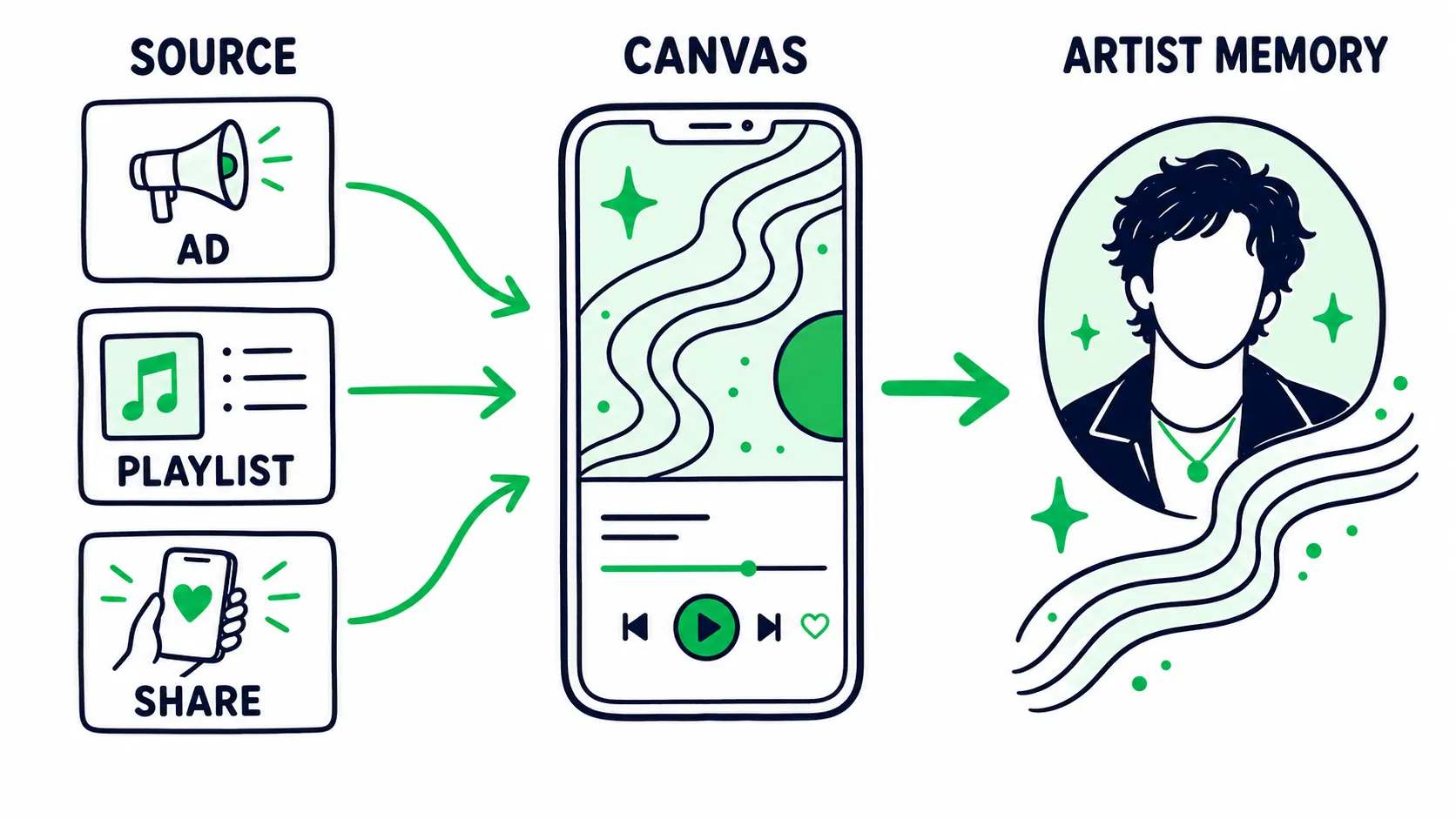
Carry one familiar cue from the attention source into Spotify, then turn it into artist memory.
Our music release checklist puts Canvas inside the release flow. This keeps the visual decision close to the rest of the campaign assets.
Build The Creative Around Motif, Motion, And Loop
Strong Canvas direction has three layers.
Decide motif first, motion second, and loop third.
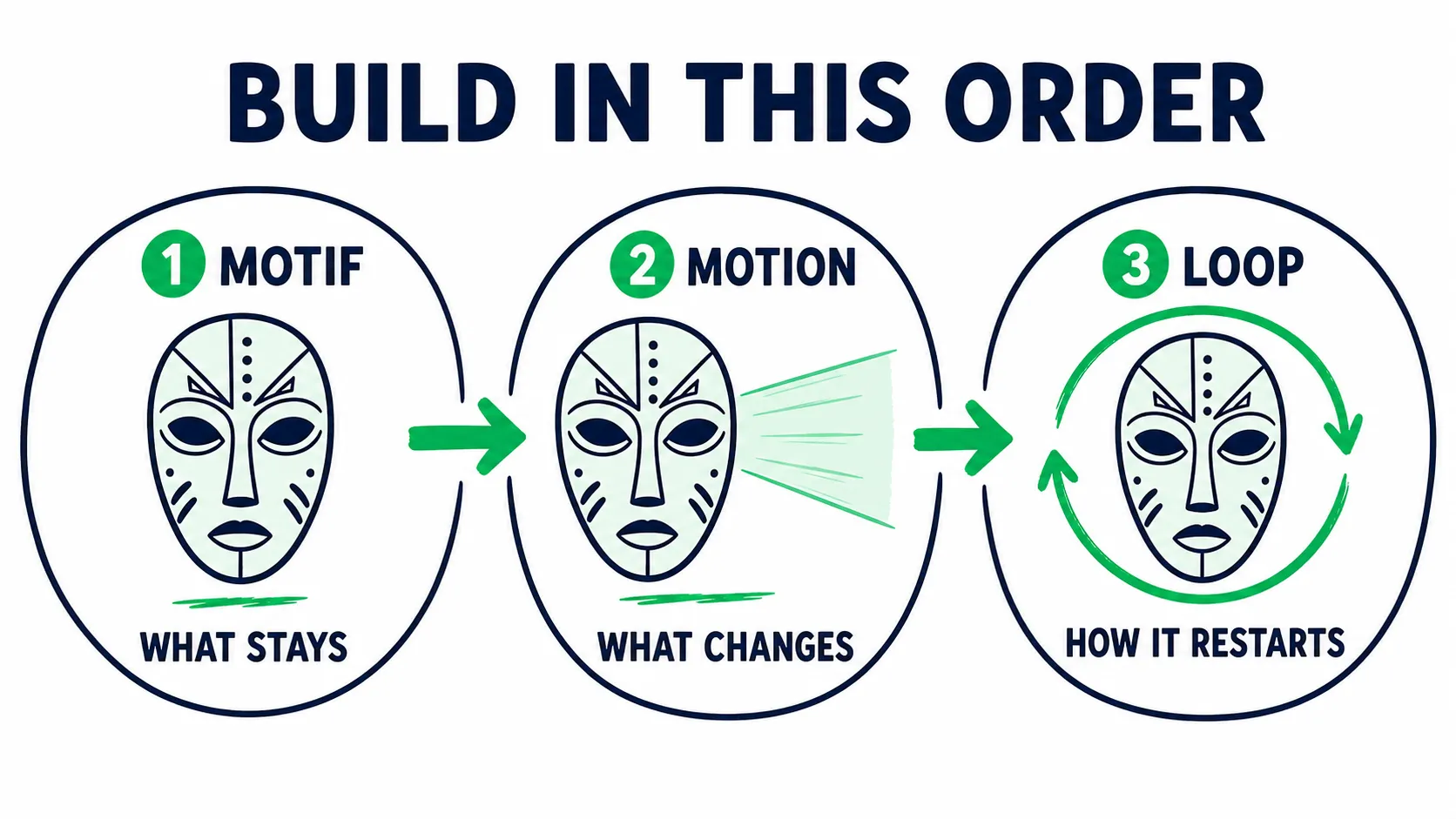
Choose what stays, decide what changes, then design how the motion restarts.
Motif: What Should The Listener Remember?
The motif is the main visual fact. It might be the artist’s face, a silver mask, or a motel sign. It could also be one part of the cover.
Choose something you can repeat across the release.
A motif gains value when it appears in the cover, short videos, photos, Canvas, and live visuals.
Each use should still feel native to the format.
Motion: What Should Change?
Motion directs attention.
It should reveal, hide, tighten, release, hit, drift, or return.
“Make it move” is not direction. “Let the light reveal the eyes on the last beat” is direction.
Match the motion to the song’s energy curve, not only its BPM.
A slow song can carry a sharp visual event. A fast song can hold one tense frame with a small pulse.
Loop: How Should The Idea Restart?
Spotify describes continuous, hard cut, and rebound loops in its Canvas examples.
| Loop type | Use it when | Watch for |
|---|---|---|
| Continuous | The action can return to the first frame without a visible break | A weak seam that makes smooth motion look broken |
| Hard cut | The reset should feel rhythmic, abrupt, or graphic | A cut that looks accidental instead of timed |
| Rebound | Forward and reverse motion suits the idea | People, smoke, liquids, and hair moving backward in an awkward way |
The first frame is also the return point.
A strong loop has no dead opening. The idea begins at once and still feels natural when it repeats.
Spotify Canvas Ideas With A Strategic Use
The concept should solve a release problem. Start from the problem, then choose the treatment.
| Release need | Canvas concept | Why it fits |
|---|---|---|
| The artist needs more recognition | One clear face reveal, profile turn, or signature gesture | Connects the sound to a person without forcing a full performance |
| The cover is already strong | Animate one layer, light source, texture, or object | Protects the visual identity while adding motion |
| One short video is driving traffic | Use the same visual cue with a cleaner loop | Creates a direct handoff from the source content to Spotify |
| An album needs unity | Repeat one motif across every track with a different action or color state | Builds one release world without making every Canvas identical |
| The song has a key production moment | Time one reveal, camera hit, or light change to the emotional idea | Lets the visual mirror the part listeners remember |
| The artist wants distance or mystery | Use silhouette, reflection, partial framing, or a controlled symbol | Builds identity without using a direct portrait |
Avoid concepts that rely on lyrics, context, or a long setup.
The listener may open Now Playing at any point in the track. The loop has to work without a beginning, middle, or end.
Choose The Right Production Route
The source asset sets the quality ceiling.
Pick the route based on the campaign, not the tool you happen to know.
Animate The Cover When Recognition Matters Most
Cover animation is efficient because the visual identity already belongs to the release.
Ask for layered source files while the cover is being built.
Separate the subject, type, background, texture, and light effects.
That gives the motion editor room to animate one idea without cutting the final flat image apart.
This route is best when the cover has strong shapes and the campaign needs consistency more than personality.
Recut Campaign Footage When Traffic Already Has A Visual Cue
Use footage from the ad, video, photo session, or performance. This route works best when that footage already earned attention.
Do not drop the first eight seconds into a vertical crop.
Find one complete action. Remove any setup that needs the previous shot.
Build the loop for Now Playing, then compare it with the source content side by side.
The two assets should feel related, but the Canvas can be quieter than the ad.
The song is already playing. It does not need the same stopping power.
Shoot For Canvas When The Existing Assets Miss The Job
A short purpose built shoot makes sense when the artist needs more identity. It also solves campaign footage that cannot crop well.
Record more time than the final loop. Hold each action before and after the movement.
Capture a clean first frame, the full motion, and a stable return.
Those extra seconds give the editor room to choose the seam.
Shoot the key action near the center. Leave room for different phone crops and the player interface. Capture a clean version without text or added graphics.
Use cover animation for recognition, campaign footage for continuity, and a new shoot when the existing assets cannot do the job.Use A Real Creative Brief
The brief should tell the editor what the asset must do. Visual style comes after that decision.
Track:
Primary listener source:
What the listener already knows:
Primary Canvas job:
Motif to remember:
Motion direction:
Loop type:
First frame:
Source asset and rights owner:
Details that must stay visible:
Elements that must stay out:
Campaign assets this must match:
Test hypothesis:
Signals to review:
Date for the first review:
Example hypothesis: “Cold playlist listeners open Now Playing with little artist context. The same silver mask across Canvas, profile, and cover should make the artist easier to place.”
That is a useful claim. “Motion will increase engagement” is too vague to guide the creative or the review.
If the release has paid traffic, several collaborators, and a full visual system, talk with our team.
The hard part is often the handoff from ad to Spotify to profile. One more video file will not fix a broken handoff.
Protect The Canvas From Crops And Compression
Spotify warns that some phones may cut the sides of the Canvas. The player interface also competes with the image.
There is no official universal safe zone. Build one through restraint.
Keep the face, symbol, or main action near the center. Keep key detail away from every edge.
Preview at phone size, with interface elements over the frame, and on more than one screen shape.
Compression punishes weak source files and busy surfaces. Fine grain, thin lines, smoke, darkness, and fast noise can fall apart even when the master looks clean.
Use clear shapes, controlled contrast, and deliberate motion.
If a texture is important, test the uploaded result before the campaign locks.
A beautiful master that becomes mud in Spotify is not a finished asset.
For each final file, check:
- Exact ratio and final dimensions
- Actual duration after export
- No black bars or hidden padding
- First frame and loop seam
- Main subject under the player interface
- Dark detail on a real phone
- Fine texture after upload
- Correct track version and artist account
How To Upload Spotify Canvas
Spotify says Admins and Editors can add Canvas when the artist has the required main artist role. Its upload instructions explain the full eligibility rules.
Upload From Web
- Log in to Spotify for Artists.
- Open Music.
- Select the track.
- Click Add Canvas.
- Upload, preview, and publish the file.
Upload From Mobile
- Open the Spotify for Artists app.
- Tap Music.
- Select the track.
- Tap Canvas.
- Upload, preview, and publish the file.
You can add Canvas before an upcoming release goes live.
Add it while the release team is still checking the profile, links, credits, and campaign assets.
Do not leave Canvas as a release morning task.
Spotify Canvas Not Working: Diagnose The Failure
Work from the symptom. Repeating the same export with a larger bitrate is not diagnosis.
| Symptom | Likely cause | Best next check |
|---|---|---|
| Wrong ratio error | The final file is not exact 9:16 | Inspect the exported dimensions, padding, and black bars |
| Correct file fails on web | The file breaks a listed rule or the web upload is failing | Check the official rules once, then try the mobile app |
| Canvas looks soft | Weak source, fine detail, low contrast, or compression | Return to the master and simplify the image before raising export settings |
| Main subject gets cropped | The focal point sits too close to an edge | Reframe the source instead of shrinking everything into the center |
| Canvas does not appear | App setting, Data Saver, territory, device, or track version | Check Spotify’s visibility steps on the listener device |
| Add Canvas is missing | Team access or artist credit is not eligible | Check Admin or Editor access and the main artist role |
Spotify’s Canvas visibility guide starts with the mobile app. Turn off Data Saver and turn Canvas on under Content and display. Then confirm the feature is available in the listener’s market.
Do not invent technical rules Spotify has not published.
If a clean file meets the current requirements, check the upload path and account access.
Then check the track version and device before changing the creative master.
Canvas Rights And Content Rules
Spotify’s Canvas terms require you to control or license the visual. Check footage, cover layers, stock assets, fonts, animation elements, and the work of outside creators.
Get the usage rights in writing. “The editor made it” does not show that the editor licensed every asset inside the file.
Spotify’s Canvas content policy also limits promotional content. Do not push URLs, social handles, products, deals, contests, or unrelated releases. Do not use the Spotify logo.
Mark the Canvas explicit when the visual meets Spotify’s definition. If the clean version is part of the release plan, prepare the matching visual version before delivery.
Does Spotify Canvas Increase Streams Or Saves?
Spotify has reported strong lifts for tracks with high quality Canvas work. Its Canvas metrics guide cites increases of up to 120 percent in streams and 114 percent in saves.
Those figures show that Canvas can matter. They are not a forecast for your release.
Spotify did not publish enough test detail on that page to make those numbers a normal benchmark.
The results may reflect creative quality, artist size, listener source, campaign strength, or other selection effects.
The useful position is between hype and dismissal.
Canvas can improve the listening experience and help a visual campaign stay coherent.
It cannot repair poor listener fit, weak music, or the wrong traffic.
For the larger behavior signals, use our guides to Spotify saves and Spotify artist profile growth.
How To Test A Spotify Canvas Without Fooling Yourself
Spotify counts a Canvas view when a listener opens Now Playing and sees the visual.
The stream does not need to reach 30 seconds. One stream can create no more than one Canvas view.
Spotify explains the details in its Canvas view guide.
Canvas views are exposure data. They tell you the asset appeared, not whether the creative was good.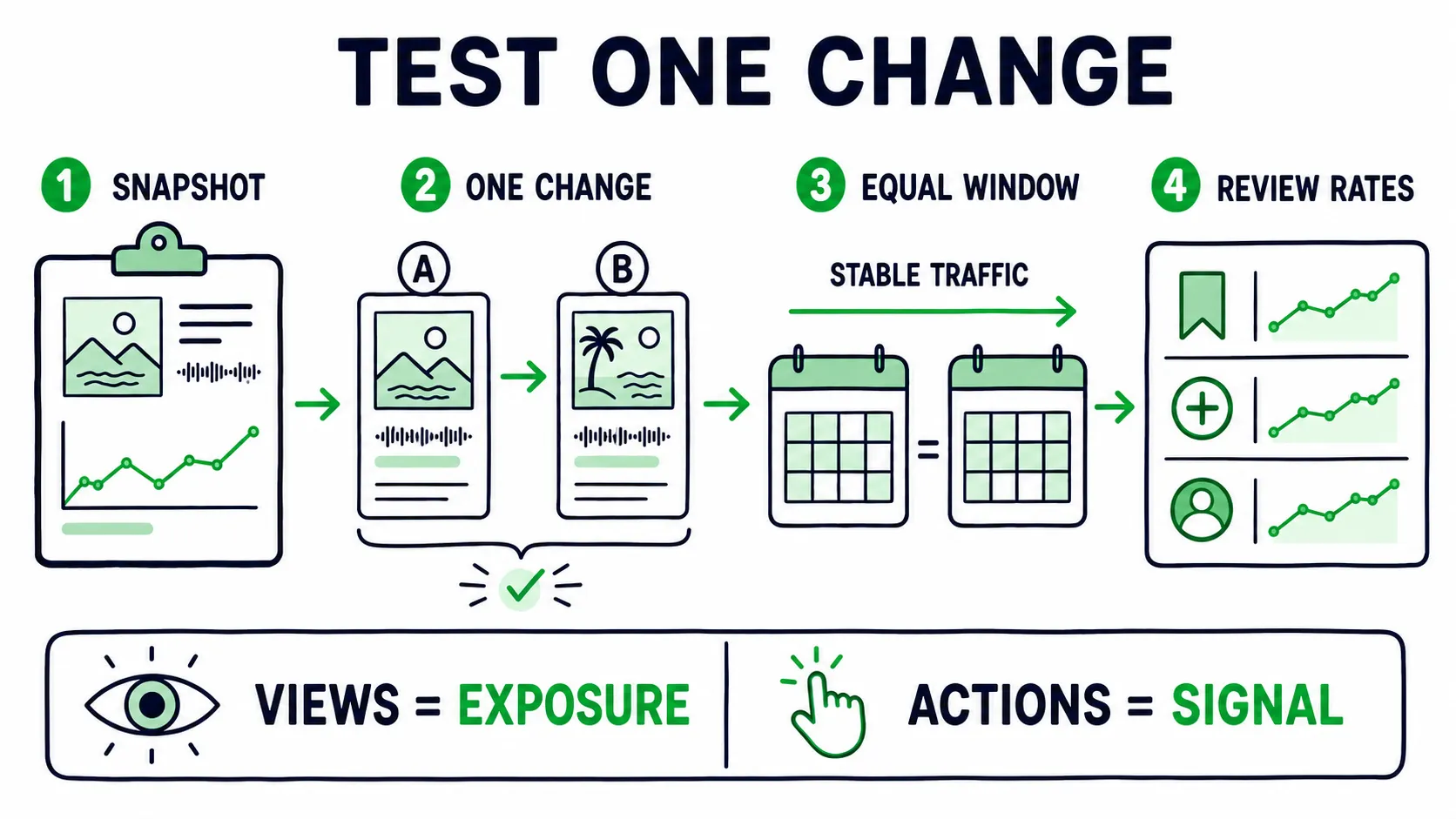
Hold traffic steady, change one creative idea, and review rates instead of raw totals.
Take A Snapshot Before The Change
Record the date and total Canvas views. Add streams, listeners, saves, playlist adds, profile movement, and the main traffic sources.
Canvas view totals do not reset when you replace the visual. You need snapshots to calculate the change during each test period.
Keep The Traffic Mix As Stable As Possible
Do not judge a new Canvas during a major ad increase, playlist add, release spike, or viral post if you can avoid it.
Those events change who is listening and how they behave.
Use equal time windows and note every campaign change. A seven day period against another seven day period is more useful than comparing release day with a quiet month.
Review Rates, Not Only Totals
More traffic creates more views and actions even when the creative has not improved.
Useful context includes:
- Daily Canvas view change compared with daily streams
- Saves per listener
- Playlist adds per listener
- Profile visits and follows during the same window
- Shares when the campaign gives you access to that signal
- Streams per listener when the release goal includes repeat listening
None of those rates can prove that Canvas caused the result. They show whether listener behavior moved in the same period.
Change One Creative Variable
Test a meaningful difference. Face versus no face. Campaign footage versus cover animation. Smooth loop versus hard cut. Strong motif versus abstract texture.
Changing the color, source footage, pace, crop, and loop at once may improve the result, but you will not know why.
Use A Decision Rule
Keep it when the Canvas fits the campaign and survives the product interface. The wider listener signals should stay healthy too.
Iterate when the asset gets exposure but fails the creative brief. Replace a weak motif, confusing first frame, poor crop, or broken handoff from the traffic source.
Stop spending when the song has little active traffic or the visual cannot be produced well. The same applies when the test costs more than the decision is worth.
Key takeaway
Before you scale traffic, use the free Spotify audit to check the whole profile.
If the song already has strong listener fit, our Spotify promotion service can help you test it with a larger real audience.
Connect the test to your wider music marketing strategy and Spotify algorithm launch playbook. Canvas should support the release plan, not become a separate project with its own logic.
Bottom Line
The file is the easy part. The valuable part is deciding what the Canvas should do inside the listener path.
Choose one job and match it to the source of attention.
Build around a repeatable motif. Direct the motion. Design the loop.
Protect the focal point from crops and compression. Then review the asset beside the rest of the campaign.
A strong Canvas will not turn a weak release into a strong one.
It can make a strong release feel connected while a listener is deciding what the artist means to them.
FAQ
What Are The Best Dimensions For A Spotify Canvas?
Spotify requires a vertical 9:16 ratio and currently says the file should be between 720 and 1080 pixels tall.
The file must be 3 to 8 seconds and use MP4 or JPG.
Many editors use 1080 by 1920 for vertical video, which does not match Spotify’s stated height range.
Check the current official page and inspect the final export. Do not trust the project preset alone.
Why Does My Spotify Canvas Look Pixelated?
Pixelation can start with the source or platform compression. Fine grain, smoke, thin lines, low light, and fast texture changes are hard to preserve.
Go back to the clean master. Improve contrast and reduce detail that does not survive at phone size.
Spotify does not publish an official bitrate target. Raising bitrate alone is not a reliable fix.
Why Does Spotify Say My Canvas Has The Wrong Ratio When It Is 9:16?
The project may be 9:16 while the exported file is not. Padding, black bars, crop settings, or automatic scaling can change the final dimensions.
Inspect the file itself. If it meets Spotify’s listed ratio, height, length, and format rules but the web upload still fails, try Spotify for Artists on mobile.
Does Spotify Canvas Actually Increase Streams?
Spotify has published strong results for selected tracks with Canvas, but those numbers should not become your forecast.
Canvas may support saves, shares, profile visits, and streams when the creative fits the song and the listener path.
It cannot create listener fit.
Test it beside stable traffic and review rates instead of raw totals.
Do Listeners Actually Like Spotify Canvas?
Listener opinion is mixed because the work is mixed.
A loop that extends the cover, campaign, or artist identity can add to the track.
A flashing clip, random stock shot, weak crop, or obvious promo asset can feel intrusive.
The useful question is not whether every listener likes Canvas. Ask whether this Canvas helps the right listener understand the release without competing with the music.